Understand Suitable Cloud Computing Type For You

Types Of Cloud Computing


In the recent years, cloud computing has growing rapidly and become popular on technology industry. Several models and deployment strategies has appeared to help various users to meet their needs. Every type of cloud services will give you various level of control, flexibility, and management. Before you decide your needs, understand the cloud computing type for you

Software as a services (SaaS) 

Software as a Service (SaaS)

SaaS provides you with a completed product that is run and managed by the services provider. In several cases, people referring SaaS to end-user applications. With SaaS, users do not need to install, update or handling software problem anymore.


Platform as a Service (PaaS)

PaaS provides your business with a cloud environment that you can develop, manage and deliver applications. You are able to use a suite of pre-built tools to develop, customize and test your own applications without the complexity of building and maintaining the infrastructure.


Infrastructure as a Service (IaaS)

IaaS contains business access to vital architecture, such as storage space, compute, and connections. IaaS provides you high flexibility and management control over your IT resources. Nowadays, IaaS are well-known as existing IT resources that many IT departments and developers familiar with. In Zettagrid, we offer IaaS cloud computing that fully flexible with predictable billing and multi network connection to deliver the integrated cloud experience you’ve seeking.

4 Reasons Why Cloud Computing Is Crucial on Industry 4.0

Cloud on 4.0 Industry


Industry 4.0, also known as the intelligent industry, considered to be the fourth industrial revolution. Right now, we’re provided by digital technology that growing rapidly in every aspect of our lives. Technology such as Virtual Reality, big data, the Internet of Things (IoT), and blockchain is changing how we work and how we live. With these technologies, you can easily order a taxi, your lunch, and pampering yourself all within a single platform.

The fundamental enabler behind those technology is called Cloud Computing, which has a crucial role in lots of technical innovation. Here are 4 reasons why cloud computing is crucial in this era:


  1. Cloud Computing is flexible and safe

Cloud computing helps business in all industries to keep pace with current speedily advancing technology. With artificial intelligence and automation being integrated more frequently into industry, cloud computing is a way for businesses to readily change with the times without losing data.


  1. Agile, adaptable to individual needs.

Cloud computing allows you and your business to measure their achievement and able to perform consistently when confronted with an extraordinary amount of data. That’s why Innovative new applications on integrated cloud platform services are adaptable to individual needs.


  1. Maximizes business processes, enable more efficient supply chain, and provide predictive maintenance

In Zettagrid, we simplify your cloud experience. We offer cloud that easy to use, super scalable and highly available cloud service in Indonesia that could help you to optimize your business without worrying about security of your data.


  1. Has unprecedented compute, storage, and networking capabilities.

Cloud technology has unprecedented ability to compute, store and networking. Compute service make the platforms capable to combine automation, Internet of Things, and robotics, which contribute to innovative developments in the long run.


Source:

https://edgy.app/cloud-computing-industry-4-0

https://www.information-age.com/industry-4-0-cloud-match-heaven-123471806/

Tips Membuat Virtual Machine Menggunakan Template

Membuat Virtual Machine


Jika anda telah memiliki Virtual Data Center (VDC), ini saatnya untuk membuat beberapa Virtual Machine. Virtual Machine (VM) adalah perangkat lunak yang dapat mengisolasi sebuah mesin komputer serta dapat mereplikasi semua program sama dengan mesin komputer aslinya.

Sekarang anda dapat menyediakan VM dengan menggunakan vCloud Director. Inilah beberapa tips untuk membuat VM dengan mudah

  1. Masuklah ke vCloud Director anda, temukan username dan password anda di dalam portal My Account

Membuat Virtual Machine

  1. Masuk ke menu My Cloud dan klik ikon +

Membuat Virtual Machine

  1. Pilihlah Public Catalog dari menu drop down dan pilih OS yang anda mau untuk VM terbaru anda.

Membuat Virtual Machine

  1. Masukan nama untuk vApp anda dan pilih VDC yang anda ingin tempatkan untuk VM baru anda.Membuat Virtual Machine
  2. Berikan nama untuk VM anda, jangan lupa pilih Storage Tier anda.Membuat Virtual Machine
  3. Pilih jaringanMembuat Virtual Machine
  4. Pilih sumber yang anda inginkan untuk menugaskan VM anda

Membuat Virtual Machine

  1. VM baru anda sekarang sudah tersedia. Ketika VM sudah tersedia anda dapat melihat bahwa VM telah masuk ke dalam daftar.Membuat Virtual Machine

Untuk informasi lebih lanjut mengenai produk dan jasa dari Zettagrid di sales@zettagrid.id atau langsung hubungi ke 62-811-28-38-78 dan +62-21-2789-9962

Configure SecondSite Interzone For VDC

configure interzone zerto

Step 1 – Login and select VDC

  1. Log into MyAccount
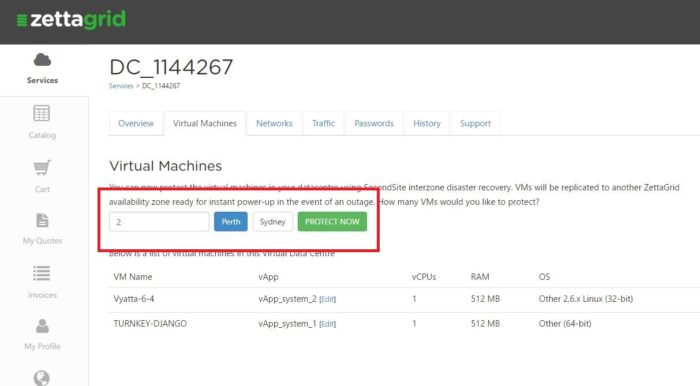
  2. Open up the VDC that has the VMs you wish to protect via SecondSite Interzone replication.
  3. As seen below choose the number of VMs you wish to protect, the zone you would like them replicated to and hit Protect Now.
 

Step 2 – Purchase

Follow through the payment gateway and confirm your selection.
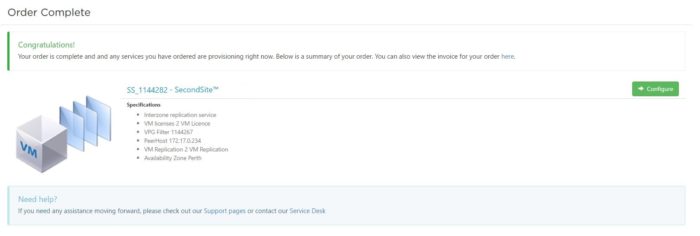
Step 3 – Interzone Configuration

Go back to your MyAccount page and witness that a new VDC with the prefix SS is being provisioned and appears as below.
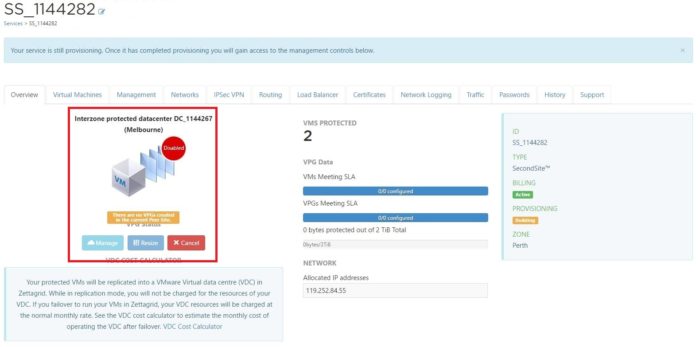
As you can see it is highlighting a few important items;

  • The VDC it is protecting
  • An alert that there are currently no VPGs created
  • The number of VMs you have purchased protection for

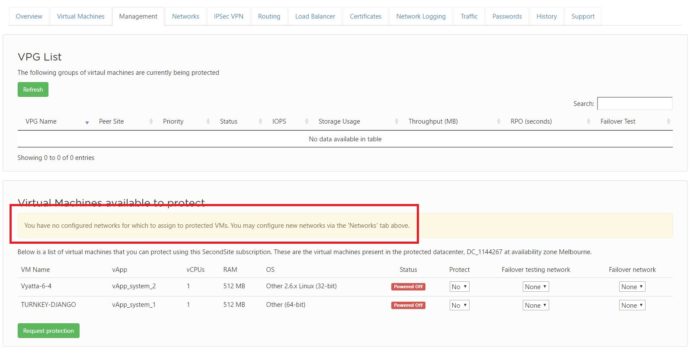
Step 4 – Virtual Machines Available to Protect

Click the Management tab and see that there are no networks created as yet.

These networks are what the VMs will be attached to in the VDC in the new availability zone. This might be the same or completely different to what they are in the current availability zone.
Step 5 – Network Configuration

Head to the Network tab and begin the network configuration.

Select an uplink and then hit on the edit button on the right hand side as per below.
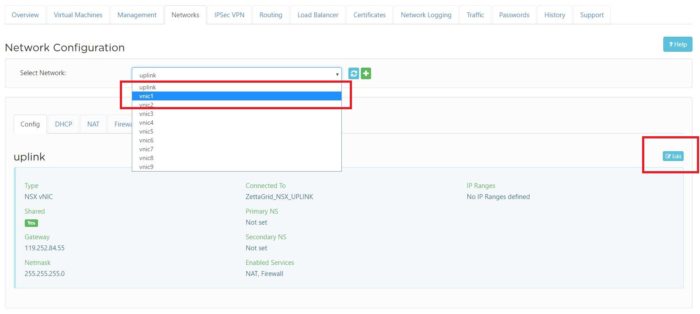
Enter in the relevant information that you would like the production network to be. Ensure that you select to make the network Connected.
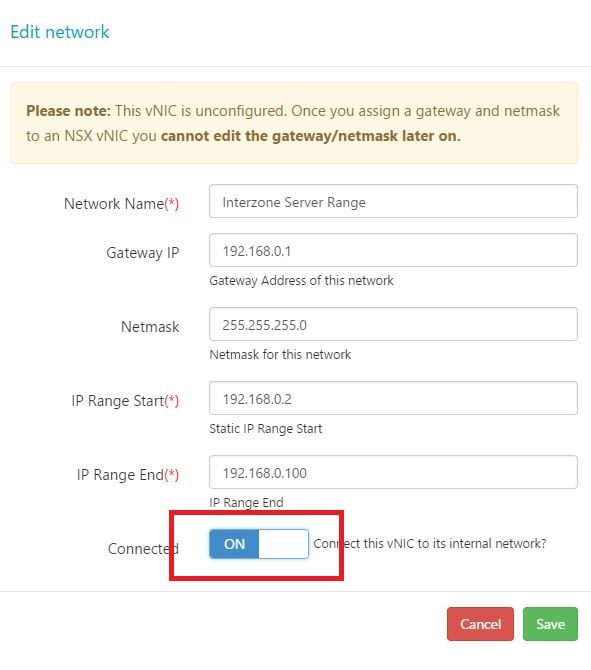
Now you have configured the production network. SecondSite also allows you to perform test failovers which are typically unrouted or internal networks that do not have any outbound connectivity. You will need to repeat the above process and create a test network for your VMs.

Please note: The networks you have created are simple the VLANs that the VMs will be tagged with. If you have advanced firewall rules, BGP or NAT rules setup in your production VDC then you will need to also create these on the new SecondSite instance as it is entirely separate from your production VDC. For assistance with that head here – Creating Networks for Interzone Replication

Step 6 – Enabling Protection

Return back to the Management tab and select the relevant networks and IPs for both production failover network and test failover network.

Make sure you select to enable protection for all the VMs you wish to protect and then hit Request Protection.
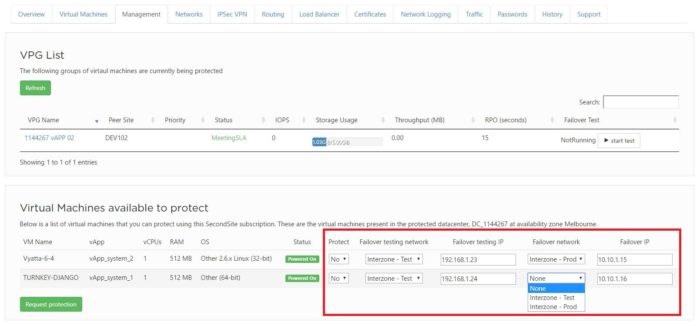
 

The VMs will now begin replicating. The initial replication can take considerable time (can be hours or days) as it will be potentially transferring multiple terabytes across the country so please be patient.

Once complete you will be able to see the status of the replication from the Overview page of the service as per below. You will be able to see how many VMs are protected and the overall information on whether they are meeting a 5 minute RPO target SLA or not.
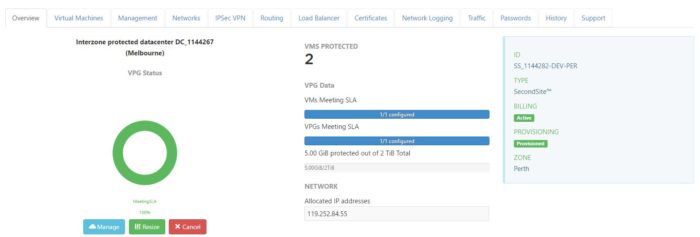
Proceed over to the Management tab again for specific information about each VM under protection.
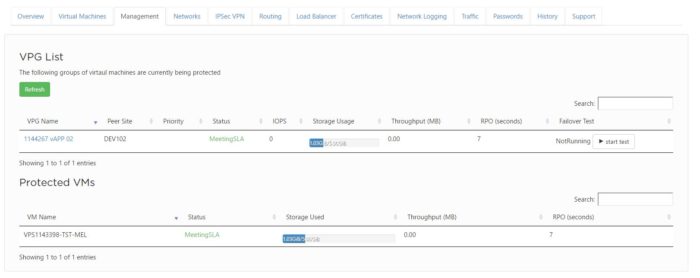
Congratulations you have now successfully setup Interzone replication.

For further information about Zettagrid product and service do not hesitate to contact sales@zettagrid.id or directly contact to +62-811-28-38-78 and +62-21-2789-9962

Configure Veeam Backup From Client Side

configure veeam backup

Details to Connect:

Gateway: veeam.[per|syd|mel].zettagrid.com
username: VCC_nnnnnn
password: xxx

These details are available in your Veeam Subscription in My Account.

Veeam B&R Setup and Configuration:

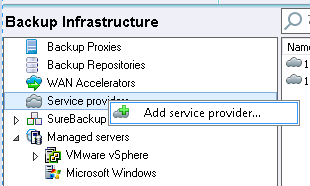
In the B&R Console select the Backup Infrastructure Menu and right click on Service Providers

cc1

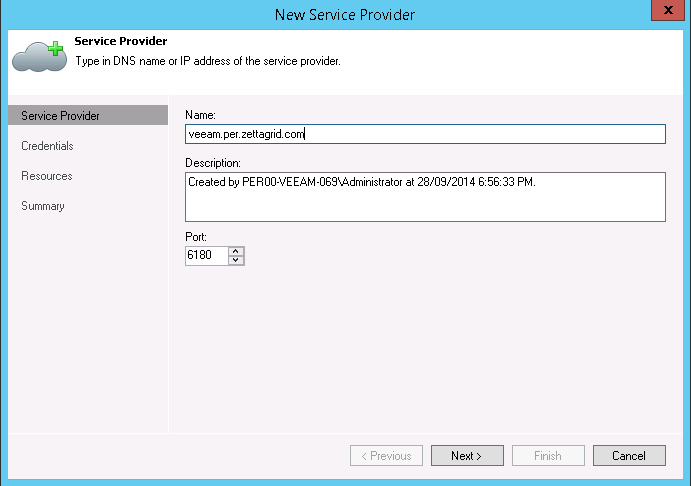
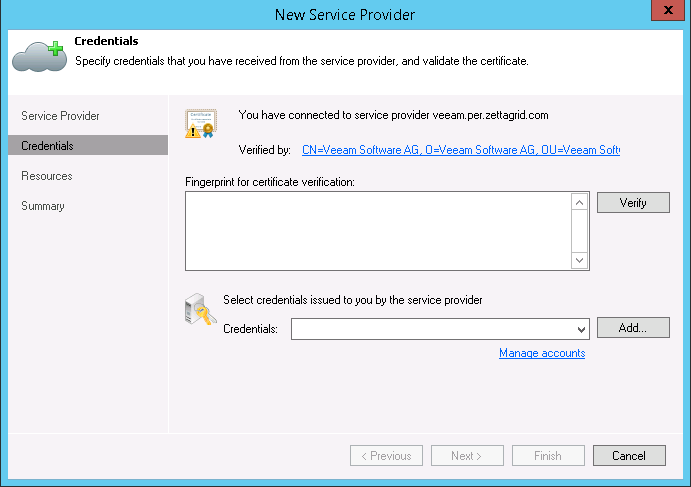
Click the Add Service Provider and enter in the following

Name: veeam.[per|syd|mel].zettagrid.com
Port: 6180 (default)

cc2

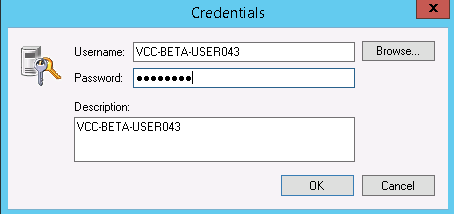
Verify the SSL Certificate and Click on Add to enter in Cloud Connect Credentials

cc3

cc4

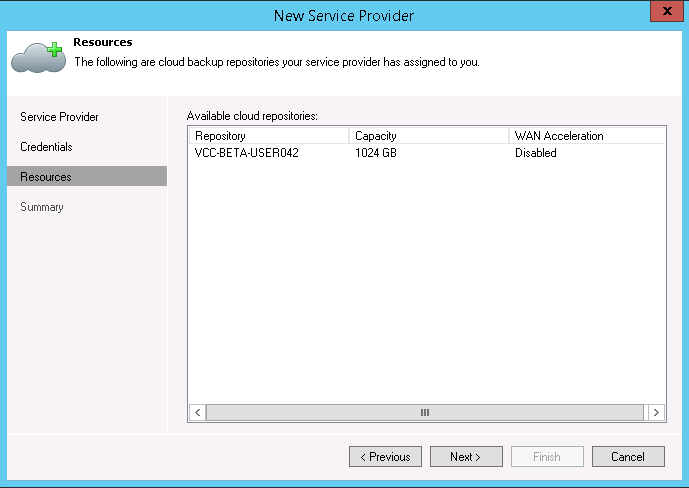
Hit Finish and wait for the Connect to Zettagrid Cloud Connect completed. Once done confirmation of your Repository and Quota will be displayed

cc5

Hit Next and Finish

Once Completed you should see the Cloud Connect Gateway appear in the list in the Service Provider Tab. If you click on The Backup Repositories tab you should see the previously configured Cloud Connect Repository of Type Cloud with the Capacity and Free space shown.

cc6

You are now ready to Create Backup and Backup Copy jobs to the Cloud Repository.

For further information about Zettagrid product and service do not hesitate to contact sales@zettagrid.id or directly contact to +62-811-28-38-78 and +62-21-2789-9962
How To Create VM Using A Template

create vm zettagrid

Once your vDC has been provisioned it’s time to start your Cloud by creating some Virtual Machines. You can create a Virtual Machine (VM) by using the vCloud Director. Here are the easy steps:

1. Login to your vCloud Director. Find your username and password within the My Account portal.

2. Go to the My Cloud tab and click on the + icon.

3. Choose Public Catalog from the drop down menu and select the OS for your new VM.

4. Enter the name for your vApp and select the VDC where your new VM will reside.

5. Give your VM a name. Don’t forget to choose a Storage Tier.

6. Select Networks.

7. Choose the resources you wish to assign to your VM.

8. Your new VM will now start provisioning. Once the VM has provisioned you will be able to see it listed.

For further information about Zettagrid product and service do not hesitate to contact sales@zettagrid.id or directly contact to +62-811-28-38-78 and +62-21-2789-9962
Configure Networks, DHCP, NAT And Firewall

configure firewall network

In Zettagrid we make all things become simple and faster. Including to configure networks, DHCP, NAT and firewall in virtual data center. Virtual Data Center allows you to configure network services such as DHCP, firewalls, network address translation (NAT), VPN and static routing for your organisation’s network.

On the Networks Tab you have a number of options and configuration items that focus around DHCP, NAT, and Firewall. Below are details on configuration available in the Networks tab for your NSX Advanced Networking Edge.

Network Tab Details

Configuration Tab

Shows an overview of the selected Network Interface and lets you configure and/or edit the Network as selected from the Drop Down.

Uplink

  • Shows the Type and details as set during the provisioning of the NSX Edge. The first Gateway IP is shown as well as enabled Services, DNS settings and additional IPs
  • Clicking on the Edit Button allows you to modify the Uplink Name and give you ability to connect/disconnect the interface.

Internal Interfaces

  • By default there are no Internal Interfaces configured and the NSX Edge is not connected to your vDC or is sharing any Interfaces with other vDCs in your Organization. There are 9 Internal Interfaces that can be configured on your NSX Edge.
  • To configure an internal Interface, drop down to the vnic number you want to configure and click on the Edit button. You should see the Connected To status as Unconfigured.
  • Fill in details relating to the Internal Network
  • he Network Name as seen in MyAccount will be different from the VirtualWire/vOrg Network (see below) name presented in vCloud Director.Note: * At the moment Interfaces can not be deleted (Please raise a support request if you require one removed).
  • Once You hit Save, Please Wait will appear until the job complete, this can take up to 2 minutes.
  • In the background a NSX VirtualWire has been created and linked through to your vDC. You can see that the Connected To details now list a VirtualWire Name that will match a vCloud Director vORG Network. This is the network that you then connect your vCloud VMs and vApps to.

DHCP Tab

Used to configure DHCP Scopes for the connected Virtual Data Centers. Each DHCP Scope is configured per configured Interface subnet. Once on the Networks Tab, to configure your first DHCP Scope, click on the DHCP Tab and on Add DHCP Pool. (Note that you need to have created at least one Internal Interface). vCloud Director VMs that are connected to the Interface and set for DHCP will now pick up their DHCP settings from the configured pool.

NAT Tab

Used to configure Inbound and Outbound Network Address Translation for each configured Interface. Each NAT rule is configured on the selected Interface. NAT services translate source or destination IP addresses and port numbers.

  • There are two kinds of NAT rules that you can create:
    • Source NAT (SNAT): This kind of rule translates the packet’s source address and, optionally, source IP port to the values you specify.
    • Destination NAT (DNAT): This kind of rule translates the packet’s destination address and, optionally, destination IP port to the values you specify.

To create a NAT, you need to know what IP addresses are accessible outside the network and what IP addresses are accessible inside the network.

Firewall Tab

Used to configure Inbound and Outbound Firewall rules . Firewall rules are Global to the Edge Gateway.

  • To create a Firewall Rule, you need to know what IP addresses are accessible outside the network and what IP addresses are accessible inside the network.
  • Typically you will use the Primary IP which is the Default Gateway IP shown below.

You can simply follow the full detail guide about this session in here

For further information about Zettagrid product and service do not hesitate to contact sales@zettagrid.id or directly contact to +62-811-28-38-78 and +62-21-2789-9962


Are You New to Virtual Data Center? Here Is Simple Guide to Start It

Virtual Data Center

Own A World Class Data Center at Your Finger Tips

Virtual Data Center (VDC) simplifies your first step to a fully virtualized data center architecture by allowing you to rapidly provision and easily manage pool of virtual machines/servers for every business needs. Forget predefined instance sizes and avoid the complexity of networking and security as your flexibly scale up and scale down the virtual resources without breaking the bank.

Once you have purchased your Virtual Data Centre it will be instantly available. Your pool of resources will be ready to go and before you jump straight in and start creating your environment, we recommend you read this page to decide how you want to structure your data center. This information could save you a lot of time in the future.

VDC is beneficial to virtually any business needs, such as R&D/pilot projects, file servers, email, ERP system, custom applications and active directory.

Ready to start the journey of VDC? Here is the simple guide to start it StartVDC

For further information about Zettagrid product and service do not hesitate to contact sales@zettagrid.id or directly contact to +62-811-28-38-78 and +62-21-2789-9962
 

Learn How to Quick Setup SecondSite DRaaS with Simple Steps

earn more zerto secondsite

Experience An Instant, Simple and Reliable Disaster Recovery with SecondSite DRaaS

SecondSite DRaaS simplifies your disaster recovery/business continuity strategy. Delivered through cloud, the service allows you to rapidly deploy a disaster recovery site without owning the technology, buying hardware and training personnel for your secondary site. Excluding failover, failback and disaster recovery processes is just one click away.

Built on the award-winning Zerto platform, the solution creates redundancy for mission critical applications and data which you need to recover quickly when catastrophic events, such as hardware failure, human error, natural disasters and power failure, occur. It enables near real time DR failover and failback with RPO’s of only seconds and RTO’s of few minutes.

This service suits all business due to it’s scalability. Whether you are protecting one VM or 1,000 VMs. Secondsite DR stays as reliable and affordable solution for small business and large enterprises.

Learn more how to quick setup SecondSite DRaaS by clicking this link QuickSetup

For further information about Zettagrid product and service do not hesitate to contact sales@zettagrid.id or directly contact to +62-811-28-38-78 and +62-21-2789-9962
 

A Comprehensive Cloud IaaS For Your Business Continuity

zettagrid comprehensive cloud services

Why Zettagrid?

These are some of the common concerns towards public cloud adoption:

  • Compatibility with the existing on-premises infrastructure and or cloud platform
  • Lack of cloud computing capabilities
  • Data security and networking policies
  • SLA & performance
  • Unpredictable billing & hidden cost
  • Customer support

Responding to these concerns, Zettagrid brings the most advanced self-service cloud infrastructure (IaaS) platform to Indonesia. Truly automated, easy to use, and super scalable, Zettagrid platform helps customers to enjoy the true benefits of cloud computing.

There are several important reasons why Zettagrid is the best cloud choice;

  • Fully flexible cloud. Zettagrid’s VM lets you customize virtual servers to match exactly what you need and pay only for the resources you are going to use.
  • No complex charge. Unlike other cloud providers, Zettagrid doesn’t charge for IOPs, Reads/Writes, PUTs, GETs, and all of the other typical nasty cloud complexities. You will receive only one simple monthly charge for your cloud and network usage.
  • Enterprise Technology with Simple Management. Zettagrid’s cloud infrastructure is powered by VMware vCloud Director platform with simple management from our portal.
  • Predictable Billing. You are in a full control of your expenses and will never experience a bill shock. Volume and term discounts are available above our retail pricing.
  • Love Us or Leave Us. No contract is the key element to Zettagrid’s cloud computing philosophy. Customers always have a freedom of choice and we set out to keep you happy in retaining your business.
  • Local Expert Support. Two availability zones residing in Indonesia and operating with 24/7 support from the local expert team will keep and secure your data within the national boundary.
  • Secure and Certified. ISO and PCI certified cloud will surely give you a service to meet your security and compliance expectation. It is simply a peace of mind.

For further information about Zettagrid product and service do not hesitate to contact sales@zettagrid.id or directly contact to +62-811-28-38-78 and +62-21-2789-9962